Fablesh Studio · Free, in your browser
Make the whole song. Free.
Fablesh Studio is a music studio that runs in your browser: record, play instruments, arrange, mix and master, then send the finished track to Fablesh. No licence fee, no account needed, and your projects stay on your own device.
Comes fromImages — artwork for the releaseContinues inVideo — the song becomes a film
What it does
A whole studio in one tab.
Instruments
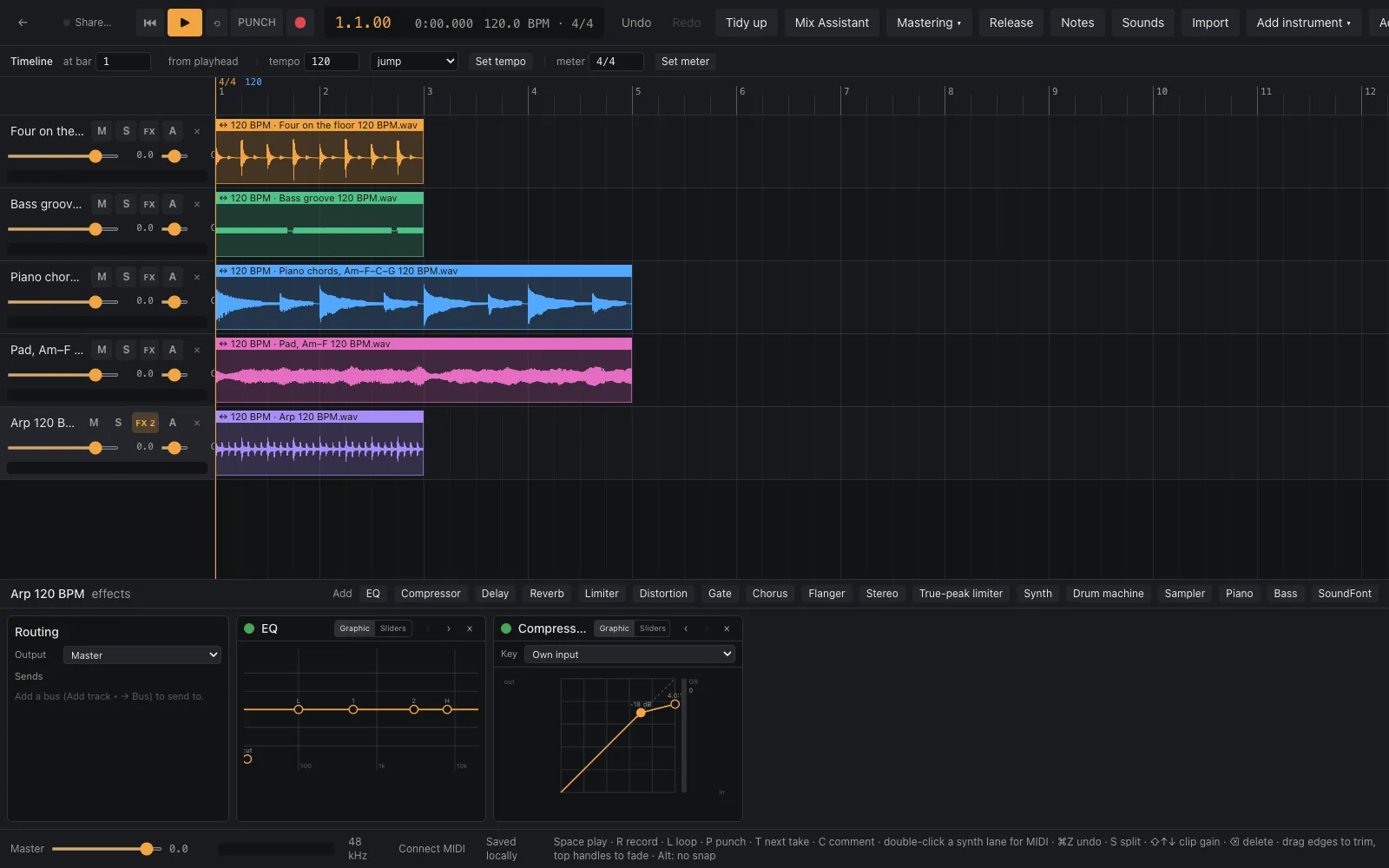
A synth, a drum machine, a sampler, a piano, a bass and a SoundFont player. Play them from a MIDI keyboard, or draw notes, velocity and controllers in the piano roll.
Open to anyone. Nothing to sign in for.
OpenEffects you can see
EQ, compressor, delay, reverb, limiter, true-peak limiter, distortion, gate, chorus, flanger and stereo tools. Each has a graphical view — drag the curve — and a list of sliders, one click apart.
Open to anyone. Nothing to sign in for.
OpenRecord and arrange
Record from your audio interface, loop and punch in, and keep every take. Bring in WAV, FLAC, MP3, AIFF and more, or start from 27 starter sounds made by Studio's own instruments.
Open to anyone. Nothing to sign in for.
OpenA timeline that follows the music
Tempo, meter, key and chords can change as often as the song does. Analyse a clip to hear its tempo, beats, key, chords and sections, and use what fits.
Open to anyone. Nothing to sign in for.
OpenMix Assistant
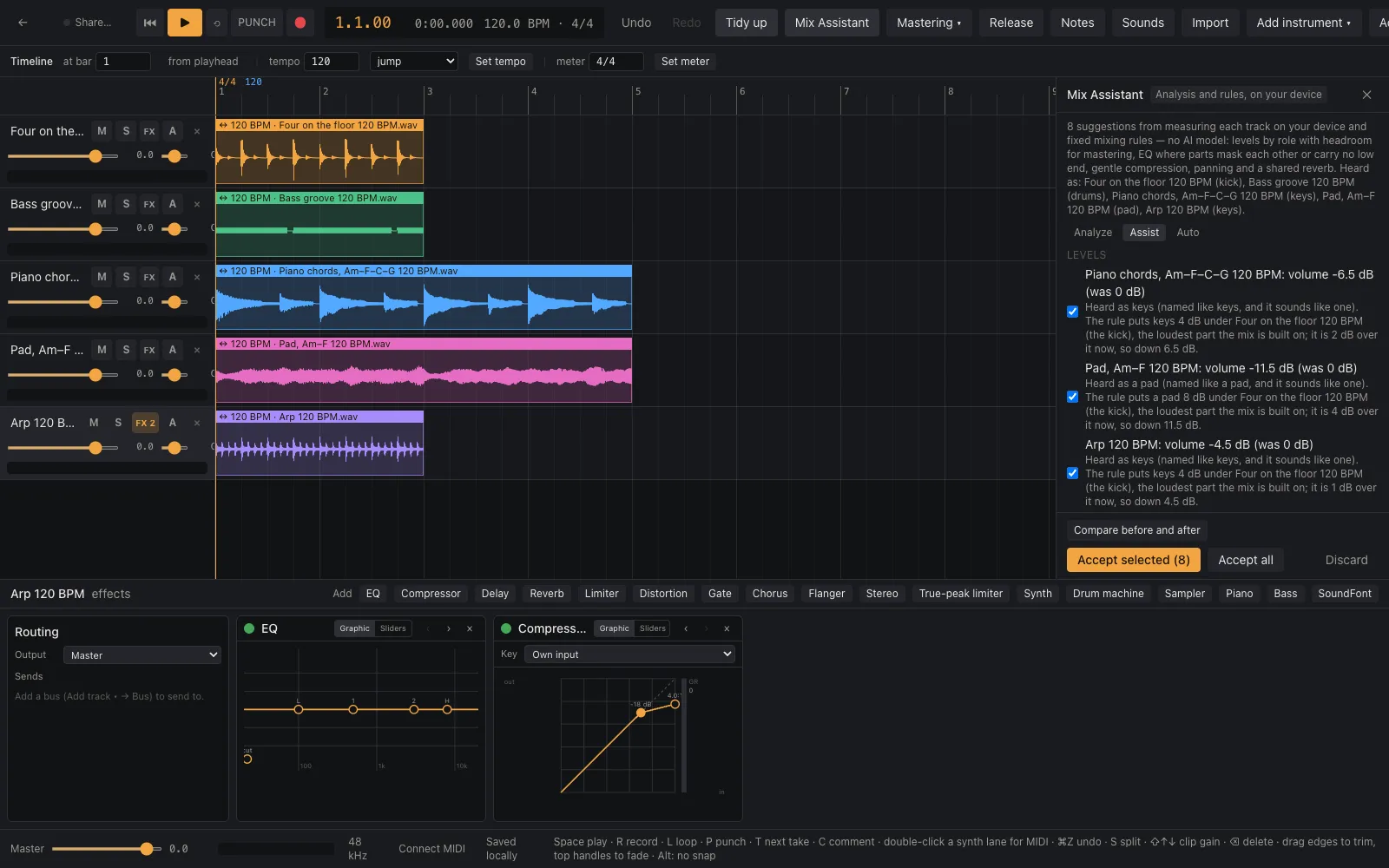
A balanced first mix as a list of suggestions, each with its reason. Measurements and fixed rules on your own device — no AI model. Compare before and after, then accept only what you want.
Open to anyone. Nothing to sign in for.
OpenMastering to a target
A master chain that brings the mix to one of five loudness targets, among them Streaming (−14 LUFS), Club / CD (−9), Podcast (−16) and Broadcast (−23). The export says what the file actually measures.
Open to anyone. Nothing to sign in for.
OpenExport, MIDI and DAWproject
The mix as 24-bit WAV, stems as WAVs in a ZIP, MIDI as a Standard MIDI File. MIDI files import too, and whole projects open and save in the open DAWproject format.
Open to anyone. Nothing to sign in for.
OpenReview links
Share a named version — “Mix 3” — as a link. Listeners play it and comment at a moment in the song, with no account. Their comments come back into your timeline.
Free. Connect your Fablesh account from inside Studio first.
OpenWork together
Share a project with your Fablesh contacts as editors or viewers. See each other's playhead and selection as you work; edits made offline merge when you reconnect.
Free. Connect your Fablesh account from inside Studio first.
OpenThe Fablesh artist library
Loops, one-shots and kits published by artists on Fablesh, each with its licence and credit. Use one and the credit travels with your release. Publish your own from a clip.
Free. Connect your Fablesh account from inside Studio first.
OpenRelease to Fablesh
Prepare for distribution masters the track to its target, checks title, credits, artwork, ISRC, rights and AI disclosure, and sends it to Fablesh as a draft in your works.
Free. Connect your Fablesh account from inside Studio first.
OpenThis is Studio
Real screens, no account.
Studio and Fablesh
Made in one tab, heard on the air.
Your release lands here
A track sent from Studio arrives as a draft in your works. Publish it and it is in the catalogue and on three stations.
How the radio worksYour contacts are your band
Studio shares projects with the people you are connected to on Fablesh, and invitations are accepted on fablesh.com.
Your peopleFeedback without a sign-up
Review links open on fablesh.com, so anyone you send one to can listen and comment without making an account.
How review links workSamples by artists here
The library is made by artists on Fablesh, from their own work, with their licence and credit on every sound.
Meet the artistsQuestions
What people ask first.
- Is it really free?
- Yes. Studio has no licence fee and no trial. Recording, instruments, effects, mixing, mastering and export cost nothing. The one thing in it that spends Fablesh credits is optional: AI note suggestions in the piano roll, which say “1 credit” on the button before they run.
- Do I need an account?
- Not to make music. You need a Fablesh account, connected from inside Studio, only to share a project, send a review link, use or publish to the artist library, or send a release to Fablesh.
- Where are my projects saved?
- In your browser, on your own device. Nothing is uploaded unless you share a project or send something to Fablesh. Save a .fstudio file to keep a copy or to move a project to another computer.
- Which browser do I need?
- A current desktop browser. Playing from a MIDI keyboard needs a browser with Web MIDI — Studio tells you if yours has none — and everything else works without it.
- Is there a desktop app?
- It is coming, but there is no download yet. The desktop app will add the plugins installed on your computer and stem separation with Fablesh's own model. This page will say when you can get it.
- Does Studio use AI?
- Mix Assistant and Mastering do not: they are measurements and fixed rules that run on your device, and Studio labels them as rules. Nothing changes your project until you accept it, and anything AI or rules did to a track is listed in its release's AI disclosure.
- Can I take a project somewhere else?
- Yes. Export it in the open DAWproject format, or export the mix, the stems and the MIDI. Studio's own instruments and effects only play in Studio, so export stems when the other side needs the sound as it is.
- How does a track get from Studio onto the radio?
- Prepare for distribution sends the finished master to Fablesh as a draft in your works. Publish it there and it goes into the catalogue and on to the radio, like any upload. For streaming stores, the release page has the DistroKid hand-off, showing the credits, ISRC request, rights and AI disclosure that came from Studio.
Where this ends up
The catalogue, and then the air.
What you finish here goes into the catalogue, onto three stations and onto a page that is yours. That is what these tools are for — it is not a separate service you upload to afterwards.